SprigTools isn't in my extensions
SprigTools installs itself on BlueSprig-managed Chrome — nothing to download. When it doesn't show up, it is almost always one of the three things below, in roughly this order of likelihood. Work through them top to bottom; each takes about a minute. If you get to the end and it still isn't there, the last section tells us exactly what we need to push it to your machine.
Are you in Edge instead of Chrome?
SprigTools only deploys to Google Chrome. Microsoft Edge looks similar, opens by default on many BlueSprig laptops, and will never show it. Check the window you're in: Chrome's icon is the red, yellow, green and blue circle; Edge's is a blue-green swirl.
- Press the Windows key, type
Chrome, and open Google Chrome. - Click the puzzle-piece icon top-right, or type
chrome://extensionsin the address bar, and look for SprigTools. - Use Chrome for CentralReach from here on — pin it to your taskbar so it's the one you reach for.
Do you have both "CentralReach Power Tools" and "SprigTools"?
If you installed Power Tools by hand back in the download-a-ZIP days, that copy is still on your machine, and it fights with the managed SprigTools install: buttons appear twice, signing runs step on each other, or one of the two quietly stops working. Keep SprigTools and remove the old one.
- Type
chrome://extensionsin the address bar and press Enter. - Look for two cards: CentralReach Power Tools and SprigTools.
- On the CentralReach Power Tools card, click Remove, then confirm. Leave SprigTools alone.
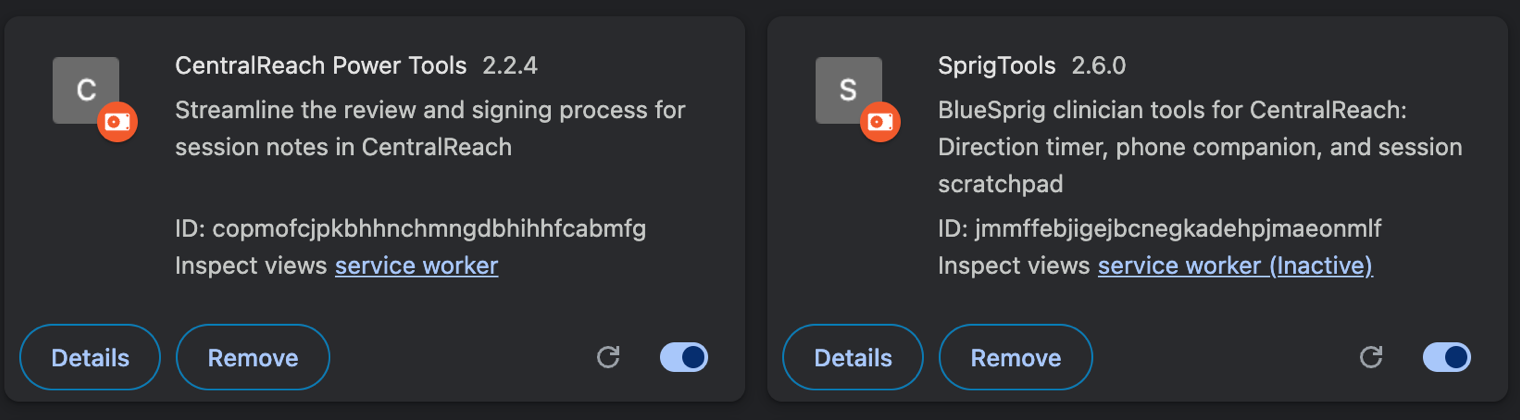
The card you want gone says CentralReach Power Tools. If you remove SprigTools instead, don't worry — it's managed, so it comes back on its own after a full Chrome restart (next section).
Did you close and reopen every Chrome window?
Managed extensions arrive on the next clean start of Chrome. Closing one window isn't enough if another is open behind it, or if Chrome is still running in the background after the last window closed.
- Close every Chrome window, including any on a second monitor.
- Check the system tray (the small arrow near the clock, bottom-right). If a Chrome icon is there, right-click it and choose Exit.
- If you want to be certain: press Ctrl+Shift+Esc to open Task Manager, and if Google Chrome is still listed, select it and click End task.
- Open Chrome again and look for SprigTools.
Restarting the computer does the same job, if that's easier.
Still not there? Tell us
If you've done all three and SprigTools still isn't in your extensions, it hasn't reached your machine yet. Report it through the feedback & bug report form and we'll push it to you.
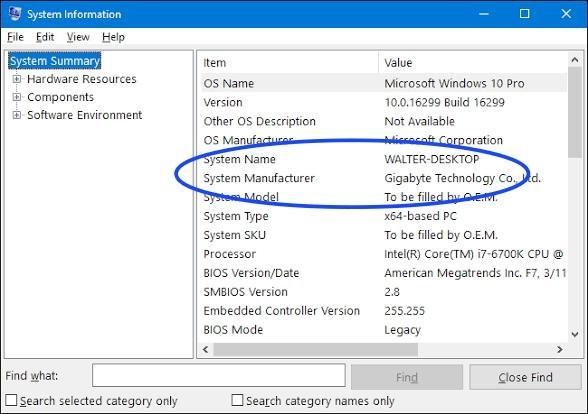
To find your computer, include a screenshot of your System Information with the System Name visible: press the Windows key, type System Information, press Enter, and screenshot the System Summary page that opens — the System Name row is what we need.
A line like “I'm in Chrome, only one card, restarted twice” saves a round of questions and gets the extension to you faster.